A Notion nonprofit program management system works best as a small relational model, not a separate spreadsheet for every program. Start with central databases for Programs, Clients, Checkpoints, Events, Contacts, and Attendance. Connect them with relations, use rollups and formulas for reporting, and place filtered linked views inside the pages where staff need the information. Keep sensitive details limited, use view-only sharing for staff who only need reports, and leave chat, email, and donation processing in the tools built for those jobs.
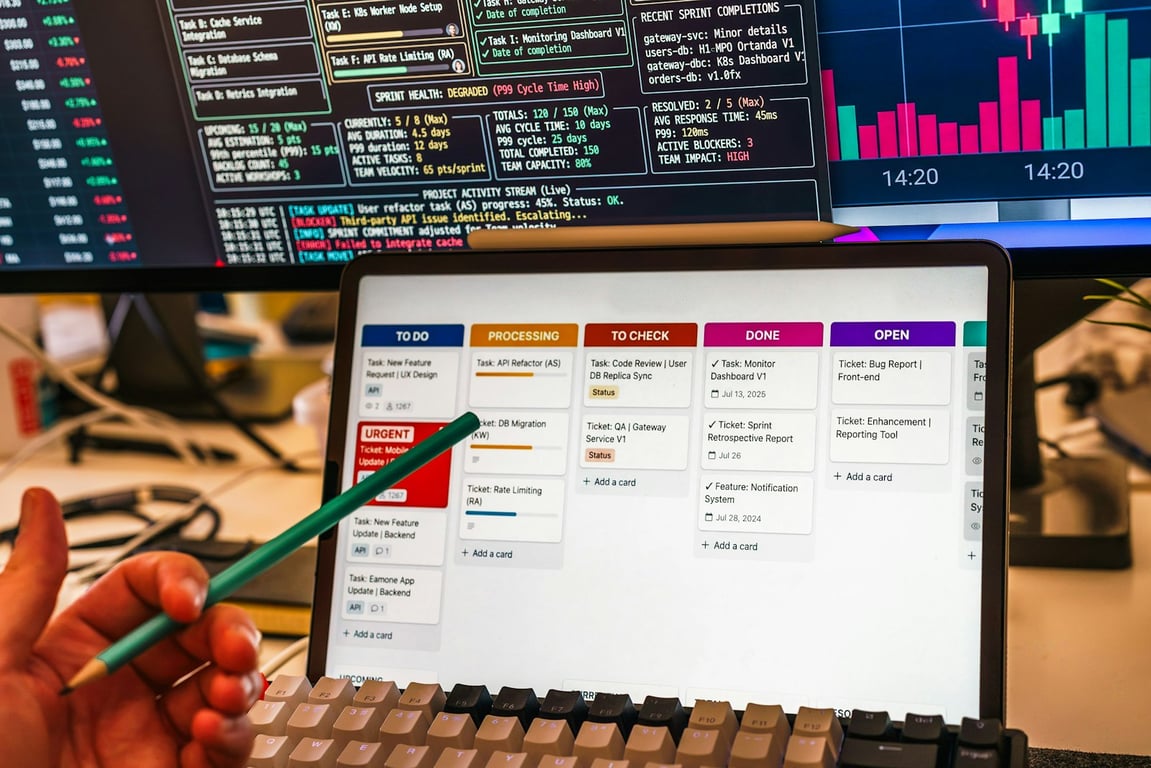
Notion nonprofit program management starts with a clear relational model. Photo by Kvalifik on Unsplash
Start with one model, not one database per program
The most important design decision is to create one central database for each type of record. If every program gets its own client list, attendance sheet, and event tracker, reporting becomes a manual merge exercise. A central model lets a nonprofit add a new program without rebuilding the system. It's the same pattern we use across our nonprofit operations work.
A program page can still feel focused. Add a linked view of Clients filtered to that program, a view of upcoming Events, and a view of Attendance records. Staff see the context they need, while the underlying records remain consistent.
This approach also makes it easier to change the structure later. You can add a new program, funding phase, service area, or event type by creating records and selecting relations instead of duplicating databases.
Recommended database structure for Notion nonprofit program management
Programs
Use one row per program, pilot, cohort, or service offering. Useful properties include:
Program name
Status, such as planning, active, paused, or complete
Start and end dates
Program lead
Funding or reporting period
Related Clients
Related Events
The program page can become a dashboard without becoming a second source of truth. Place filtered views for clients, attendance, checkpoints, and events beneath a short program summary.
Clients
Use one row per person or household, depending on your reporting requirements. Keep the record focused on the minimum information staff need to coordinate services and produce approved reports.
Possible properties include:
Internal client ID
Program relation
Enrollment date
Status
Assigned staff member
Next checkpoint date
Consent or access indicator, if appropriate
Avoid putting detailed clinical information, unredacted case notes, government identifiers, or other highly sensitive data into a general-purpose workspace unless your privacy, retention, and access controls have been reviewed. A database that is easy to browse is not automatically the right place for every kind of information.
Checkpoints
A Checkpoints database can capture milestones, check-ins, referrals, or steps in an approach to care. Relate each checkpoint to a Client and, when useful, a Program.
A practical record might include:
Client relation
Program relation
Checkpoint type
Due date
Completed date
Status
Assigned person
Short, privacy-safe outcome note
Add the Checkpoints database as a filtered linked view inside each client page. The filter should match the current client, so staff do not have to search the full database every time they review progress.
Events
Use Events for workshops, fundraisers, community activities, information sessions, or program appointments. Add date, location, event type, owner, and status properties, then relate each event to the relevant Program or Programs.
An Events calendar view can help staff plan ahead, while a table view can support reporting and follow-up.
Contacts
Contacts can represent volunteers, partners, speakers, vendors, or community contacts. Relate Contacts to Events rather than creating a new contact list for each event.
Use access rules carefully if a contact record contains personal or sensitive information. You may decide that a public event roster and a restricted contact database should be separate, with only the minimum necessary relation between them.
Attendance
Attendance is often the bridge between Programs and Clients. Use one Attendance record per person per session or event. Relate the record to both the Program and the Client, then add the session date and attendance status.
This structure supports questions such as:
How many sessions did a client attend?
Which clients attended a specific session?
What was the attendance total for a program period?
Which programs have missing attendance records?
If volunteer hours are part of the reporting model, add a Volunteer Hours database or include a carefully defined attendance type. Keep the model explicit so a volunteer shift is not confused with client participation.
Use relations, rollups, and formulas for reporting
Relations connect pages across databases. For example, a Client can relate to one or more Programs, a Checkpoint can relate to a Client, and an Attendance record can relate to both a Program and a Client.
Rollups summarize information from a related record. A Program page might roll up the number of related Clients, the total Attendance records, or the latest Checkpoint date. A Client page might roll up the next due checkpoint or the programs in which the person is enrolled.
Formulas can turn those values into useful flags. Examples include:
Needs follow-up when a checkpoint is overdue
Active when a program is open and its end date has not passed
An attendance percentage based on sessions attended and sessions scheduled
A reporting period label based on the program dates
Use formulas for repeatable calculations, not for hiding unclear definitions. Decide what counts as an attended session, a completed checkpoint, or an active client before building the formula. Otherwise, the database may produce precise numbers that do not answer the reporting question your team actually has.
Build filtered linked views where work happens
A filtered linked view shows records from a central database in another page. It is the feature that makes a relational model practical for a small nonprofit team.
Useful views include:
Program dashboard
Inside each Program page, show Clients filtered to the current program, upcoming Events, Attendance for the reporting period, and open Checkpoints. Hide properties that are irrelevant to the program lead.
Client page
Inside each Client page, show related Checkpoints, active Programs, recent Attendance, and the next action. Keep the view narrow so staff can scan it quickly.
Events calendar
Use a calendar view for upcoming events, then add filters for owner, program, or event status. Keep a separate table view for exporting or checking missing details.
Reporting view
Create a restricted view with only the fields needed for a monthly or government report. A filtered view can be exported or copied without giving every staff member access to the full operational database.
A staff home base and a program-operations model are different systems. For the staff-facing side, see our guide to building a Notion intranet for nonprofits. The two can coexist, but they solve different problems.
Roll out the system in phases
Phase 1: Prototype with sample records
Start on the free tier with sample or low-risk records. Build Programs, Clients, Checkpoints, and Attendance first. Test the relations and views with the people who will use the system weekly.
Do not begin by importing every historical spreadsheet. A small model makes it easier to see which properties are actually useful and which fields create unnecessary maintenance.
Phase 2: Add events and operational reporting
Once the core model works, add Events, Contacts, volunteer tracking, and the filtered views needed for recurring reports. Define who owns each database and how often records are reviewed.
If your nonprofit is considering a nonprofit pricing or eligibility program, confirm the current plan terms and data-handling requirements before making a long-term budget decision.
Phase 3: Share the right information
Give staff the access they need for their role. A person who only needs current reports may need view access to a filtered page, not edit access to every underlying database. Separate sensitive client information from broad staff dashboards, and review permissions whenever roles change.
Never publish client or case information to the public web. Public pages can be indexed and should be reserved for information intended for everyone.
Keep other tools in their proper roles
A program database does not need to replace your communication platform. Keep chat and email for conversations, notifications, and quick coordination. Keep donation processing in the donation system that already handles it. Use Notion for connected program records, documentation, internal dashboards, and repeatable reporting views.
That division reduces pressure to make one workspace do everything. It also makes the system easier to explain: staff know where to talk, where to process donations, and where to find the current program record.
Common mistakes to avoid
Creating a separate database for every program, event, or funding period
Importing sensitive information without a clear access and retention plan
Building formulas before agreeing on reporting definitions
Giving every staff member edit access by default
Adding dozens of properties that nobody maintains
Treating a filtered view as a replacement for permissions
Launching without an owner for each database
Importing historical data before the new model has been tested
The best first version is small enough to understand and useful enough to replace one recurring spreadsheet report. Expand only after staff can reliably create, relate, filter, and review records.
Final checklist
Before launch, confirm that:
Programs, Clients, Checkpoints, Events, Contacts, and Attendance have clear purposes
Relations connect the records staff need to report on
Rollups and formulas have agreed definitions
Each dashboard uses filtered linked views instead of duplicate databases
Sensitive fields are limited and access has been reviewed
Staff can view the reports they need without editing operational records
Chat, email, and donation processing remain in their appropriate systems
One person owns ongoing maintenance and permission reviews
A nonprofit can build a useful program-management foundation without recreating its entire technology stack. Start with the records that drive reporting, connect them once, and surface them through focused views.
Get help designing your program database
Most nonprofit Notion builds break at the relations and permissions layer: duplicate databases creep back in, or staff end up with edit access to records they only need to view. Book a ZoomFlow session and one of our consultants will map your programs, clients, and reporting views with you, then build the first version on the call.
Learn how to use Claude to design a practical scheduling assistant for a service business: data model, daily updates, dispatch workflow, and rollout steps.
Plan a Confluence to Notion migration without breaking permissions or governance. Use this enterprise checklist for discovery, pilots, rollout, and cleanup.