If your field team is juggling project numbers across tools, start the workflow in QuickBooks Online. When someone creates a project there, Zapier creates the matching Asana task and CompanyCam project with the same name, and purchase orders follow the same key into Asana.
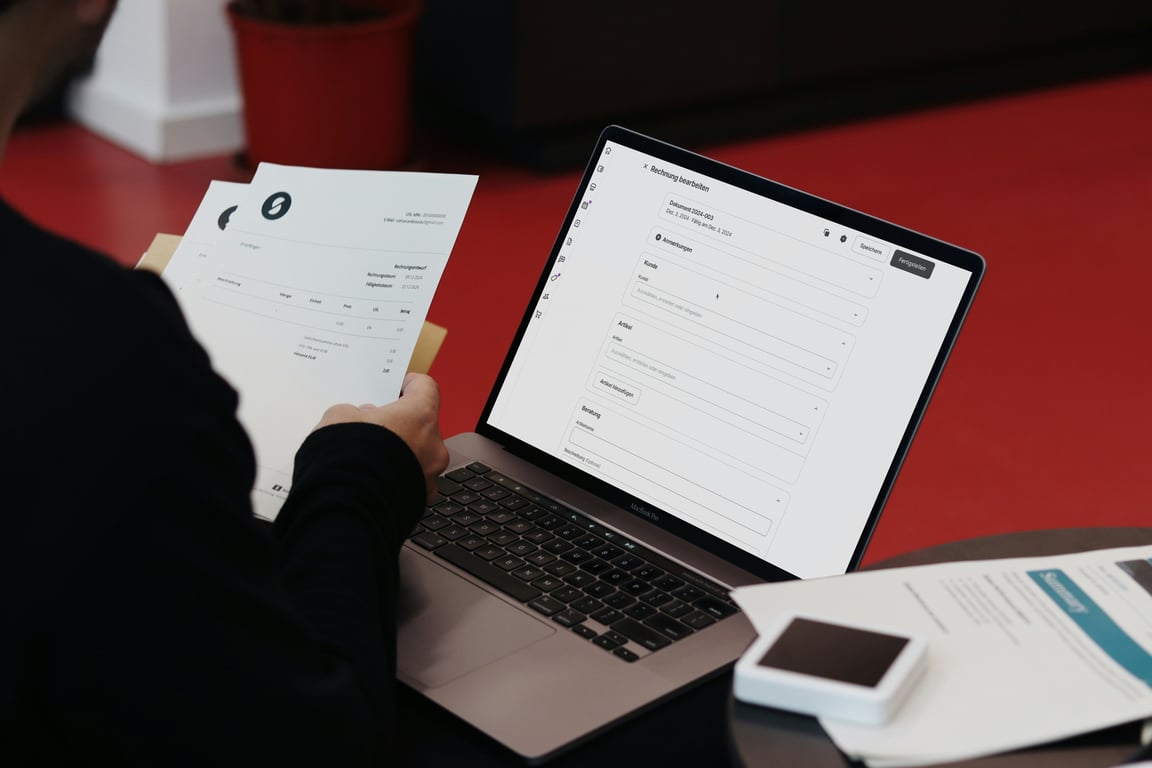
Construction team reviewing a QuickBooks, Asana and CompanyCam Zapier automation on a tablet. Photo by alan boyce on Unsplash
This guide covers the Zapier setup, a naming convention, and the duplicate checks that keep it clean. Trigger and action names match Zapier's QuickBooks Online, Asana and CompanyCam apps as of November 2026. If a name has changed, check the app's action list in the Zap editor.
Why QuickBooks goes first
It's tempting to start from the Asana estimate request and have Zapier create the QuickBooks project. Zapier's QuickBooks Online app can't do that: New Project is a trigger, not an action. So let QuickBooks create the project and have everything else follow it.
If you already take estimate requests through an Asana form, keep it. The office reviews the request, creates the project in QuickBooks, and the Zap takes it from there.
What you're building
Two Zaps:
Project setup (primary Zap)
Trigger: New Project in QuickBooks Online
Actions: find or create the Asana task, then create the CompanyCam project
Purchase order sync (optional)
Trigger: New Purchase Order in QuickBooks Online
Actions: find the Asana task for that project, then add or update a PO task
Prereqs (do these first)
Confirm you have admin access to your Zapier account.
Connect QuickBooks Online, Asana and CompanyCam in Zapier.
Decide your naming convention up front. If you skip this, you'll create duplicates.
Recommended convention:
QuickBooks project name: {CustomerName} - {JobAddress or City}
Asana task name: the QuickBooks project name, with the QuickBooks project ID in a custom field
CompanyCam project name: the QuickBooks project name
Pick the right QuickBooks company. In multi-company setups, connecting the wrong file is an easy mistake.
Step 2) Check for an existing Asana task
Before creating anything, use Asana's Find Task in Project search to search for the project name. If a task already exists (someone made it by hand, or the Zap replayed), update it instead of creating a second one.
Step 3) Create the Asana task
Action app: Asana
Action event: Create Task
Put it in the project your team works from, name it with your convention, and store the QuickBooks project ID in a custom field people don't edit.
Step 4) Create the CompanyCam project
Action app: CompanyCam
Action event: Add Project
Use the same name. CompanyCam projects are organized by job address, so map the address. If the QuickBooks project doesn't carry one, pull it from the customer record with a QuickBooks Find Customer step first. CompanyCam's Find or Create a Project search works here too if you want a built-in duplicate check.
Zap 2 (optional): QuickBooks PO → Asana
Add this once Zap 1 is stable.
Step 1) Trigger: new purchase order in QuickBooks
Trigger app: QuickBooks Online
Trigger event: New Purchase Order
Step 2) Find the related Asana task
Use the customer or project reference on the PO to identify the QuickBooks project, then use Asana's Find Task in Project search to locate the task by its name or project ID.
Step 3) Create or update an Asana task for the PO
Action app: Asana
Action event: Create Task (or Update Task)
Include:
PO number
Vendor
Amount
Link back to the QuickBooks PO, if available
Needed-by date, if applicable
If you have several POs per job, create one task per PO as a subtask of the project task.
Step 4) (Optional) Add PO context in CompanyCam
Update the CompanyCam project notepad with the PO number and vendor (Update Project Notepad action), or
Add a project label such as "PO issued" (Add Project Label action).
Common failure modes (and how to avoid them)
Authentication breaks
Symptoms: Zaps start failing after "it worked last week." Reconnect the apps in Zapier and confirm you're on the right QuickBooks company.
Duplicate Asana tasks or CompanyCam projects
Root cause: no lookup before creating. Always run Find Task in Project first, and exit or update when the QuickBooks project ID is already there.
Naming conventions drift
Root cause: people rename tasks after the automation runs. Keep the QuickBooks project ID in a custom field nobody edits, and keep the task title readable but consistent.
Partial runs (Zap errors mid-stream)
Root cause: one action fails after an earlier one already created data. Use Find-then-Create and Find-then-Update patterns so a rerun picks up where it stopped instead of creating a second copy.
Quick decision guide: how tight should this be?
If you only need visibility: create the Asana task and CompanyCam project from each new QuickBooks project.
If you need full operational control: add the PO Zap and any invoice-status automations once the core flow is stable.
Get help setting this up
Most versions of this setup break at the duplicate check or the address mapping into CompanyCam. Connex can build it end to end, including the naming convention, Find-then-Create steps and testing. Book a free consulting call and one of our consultants will build it with you live.
Learn how to turn client feedback into automated follow up emails with task lists, waiting-on-client triggers, and human review that keeps reminders useful.
Learn how to use Claude to design a practical scheduling assistant for a service business: data model, daily updates, dispatch workflow, and rollout steps.