If you want a reliable monday.com to Mailchimp sync without burning through Zapier tasks, use a batch workflow: track changes in Monday with a needs sync flag, then run a scheduled Zap that updates Mailchimp subscribers once per day (or on your preferred cadence). This keeps your audience clean, makes segmentation easier, and prevents multiple small edits from triggering multiple paid tasks.
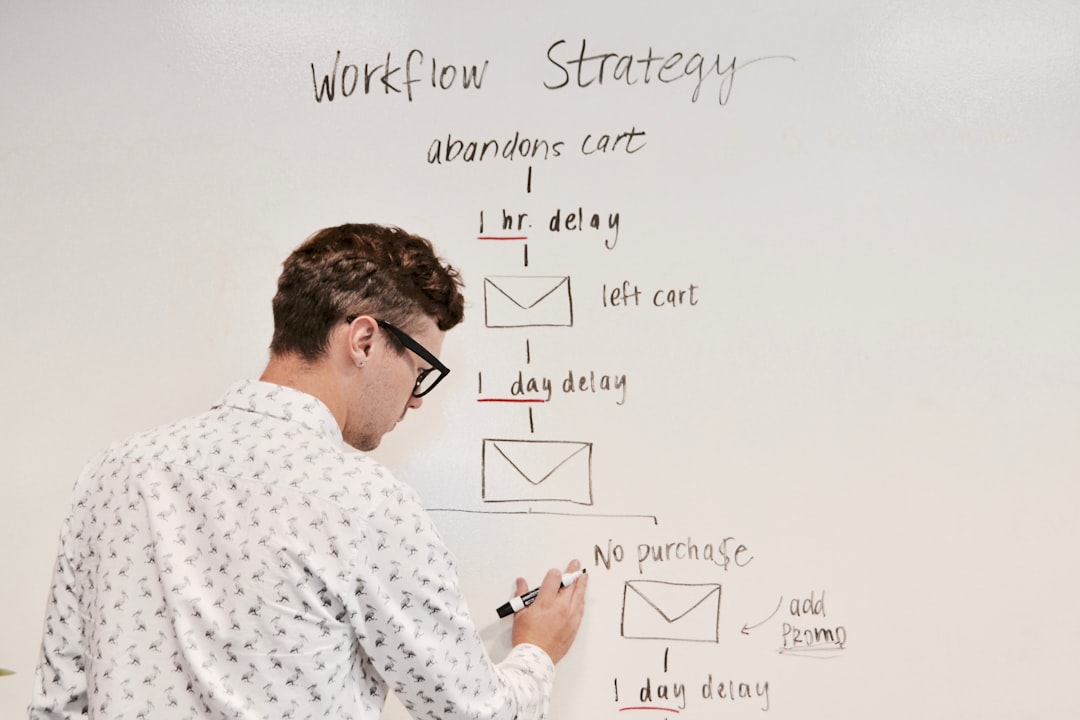
Photo by Annie Spratt on Unsplash
Why batch syncing beats real-time for Monday → Mailchimp
When teams update several fields on the same contact (like campaign, subtype, and investing criteria), real-time Zaps can trigger multiple runs for a single person. A batch approach can collapse those changes into a single daily update per contact, which is usually more cost controlled.
Batch syncing is a great fit when:
Multiple teammates update contacts throughout the day.
You care more about “accurate by tomorrow” than “accurate within 30 seconds.”
You want to segment Mailchimp audiences using multiple Monday fields (not just a single tag).
What you need before you start
Apps and access
A Monday.com CRM board (or contacts board) where each row represents a contact.
1. Create a “needs sync” status (or checkbox) column
Create a column named something like:
Needs sync (Status)
Needs sync (Checkbox)
Your batch Zap will look for contacts where needs sync = yes.
2. Decide which fields you will sync
Start with 7 to 10 fields you actually use for segmentation. Common fields teams sync include:
Campaign
Subtype (developer, buyer, broker)
Investing criteria
Relationship score or rating
Phone, company, and other core contact fields
3. Add Monday automations to set “needs sync” when tracked fields change
Create Monday automations like:
When Campaign changes → set Needs sync to Yes
When Subtype changes → set Needs sync to Yes
When Investing criteria changes → set Needs sync to Yes
This is what makes the workflow "batch" without missing updates.
Step 2: Prep Mailchimp custom fields for segmentation
Custom fields (merge fields) vs tags
If you want more advanced filtering, store Monday values in Mailchimp custom fields (merge fields), not only tags.
Examples:
CAMPAIGN
SUBTYPE
CRITERIA
LAST_UPDATED
Make sure these fields exist in your audience before you build the Zap, so Zapier can map them.
Step 3: Build the scheduled Zapier workflow (batch)
Overview of the Zap
Trigger: Schedule by Zapier (daily or hourly)
Action: Find Monday items where Needs sync = Yes
Loop: For each item, update Mailchimp subscriber (Add/Update Subscriber)
Action: Set Needs sync back to No in Monday
1) Trigger: Schedule by Zapier
Set the cadence (for example every 24 hours). Daily is often enough for most workflows.
2) Find the contacts that need syncing
Use a “find items” style step in the Monday.com Zapier connector (or a board item search action) that can filter:
Board = Contacts
Needs sync = Yes
If the connector cannot filter cleanly, you can pull a list and filter in Zapier steps, but filtering in the query is usually more stable.
3) Loop through results
Use Looping by Zapier to iterate through each contact returned.
4) Update subscriber in Mailchimp
Use Mailchimp → Add/Update Subscriber.
Mapping guidance:
Subscriber Email: Monday email field
Merge fields: map each Monday column to the matching Mailchimp custom field
5) Set Needs sync back to No
Once the Mailchimp update succeeds, update the Monday item:
Needs sync = No
This prevents re-processing the same records forever.
Step 4: Handle common edge cases (do this up front)
Contacts missing an email
Mailchimp requires email. Add a filter step:
Only continue if Email is present / not empty.
Optional: also set a “Needs email” flag in Monday for cleanup.
Column formatting inconsistencies
Some Monday fields do not pass cleanly through Zapier (for example certain rating or formula formats). Plan to test each mapped field, one at a time.
Testing and “wrong sample record” problems
If fields do not appear in Zapier mapping, or values are blank:
Switch to a different test record
Pull a fresh test item
Re-check your Monday column types and Mailchimp merge fields
One important detail: using a representative test record in Zapier matters for validating field mapping. If values look blank, switch to a different record and pull a fresh test.
Optional: Segmenting Mailchimp audiences using Monday.com fields
Once the sync is in place, you can build Mailchimp segments like:
Campaign = “Q2 outreach” AND Subtype = “Buyer”
Subtype = “Developer” AND Criteria contains “Mixed-use”
This is the main reason to sync more than just email and name.
FAQ
Can I sync in real time instead?
Yes, but costs can increase because each change can trigger a separate Zap run. Batch syncing is usually the safer default when many fields change frequently.
Should I use tags instead of custom fields?
Tags can work for simple segmentation. If you need more structured filtering across multiple fields, custom fields (merge fields) are often a better fit.
Next steps
If you want help scoping the cleanest batch sync for your specific board setup (including field formatting and edge cases), book a free consulting call:
Apollo outreach automation for B2B prospecting helps you enrich leads, find contacts, and run a 3-email sequence—then sync qualified replies into HubSpot.
SMS review request automation for Shopify stores: send a post-purchase rating link via text, then route only happy customers to your Google review page.