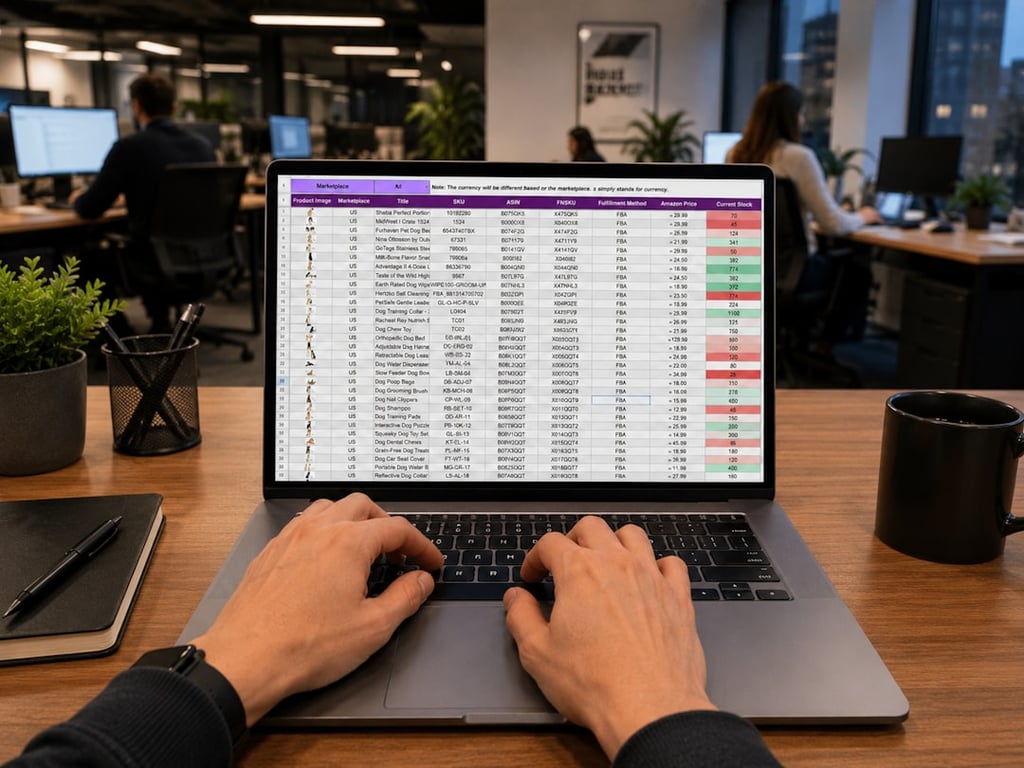
A BambooHR to Foundation FSI employee import works best as a staged CSV workflow: map the employee fields, validate a small create file, test an update against the same record, and only then plan a repeatable handoff. That sequence gives HR teams a clear way to catch missing fields, invalid codes, and update limitations before sensitive employee data moves into production.
BambooHR to Foundation FSI employee import: mapping employee data in a CSV. Photo by Gorilla ROI Data Connector on Unsplash
What a BambooHR to Foundation FSI employee import needs
Start with Foundation's employee template, not the deduction template. The employee file is where employee master data belongs. If deductions are maintained directly in Foundation, leave them out of this import.
Expect the template to include fields such as:
Social Security number, address, city, state, ZIP code, phone, and email
Termination date, rehire date, and date last worked
Earn code, cost code, pay type, and pay rate
Minority status and maintenance-required flags
Trade code, union code, and department code
Use the template's column names and expected formats exactly. Some fields may be less common in an HRIS, so decide whether the value exists in BambooHR, comes from a custom field, or should remain blank before building the export.
Step 1: Map BambooHR fields to the FSI template
Create a field map before exporting a full employee file. A simple mapping table should answer four questions for every Foundation column:
Foundation field
BambooHR source
Transformation
Validation
Employee name or ID
Standard employee field
Match the target format
Confirm the record identifier is stable
Address and contact data
Standard or custom fields
Split or normalize values as needed
Check required values and formatting
Pay rate and pay type
Compensation fields
Convert to the target representation
Verify rate and type agree
Union, trade, cost, and department codes
BambooHR standard or custom fields
Map labels or IDs to Foundation codes
Test alphanumeric values
Employment dates
Employment history or custom fields
Convert to the template's date format
Check blanks and valid dates
Keep the source value, target value, and any transformation visible. This makes it easier to explain why a row failed and prevents a code correction from being lost in a spreadsheet.
For BambooHR, a custom report is often a useful starting point because it lets you select only the fields needed for the target import. Export a small, controlled group first. Do not begin with every employee or every available BambooHR field.
Step 2: Build a safe test file
Use fake data for the first test whenever the destination supports it. Create one file for a new employee and a second file that changes one known value on that same employee.
A practical test plan looks like this:
Copy the Foundation employee template.
Fill it with one fake employee record using valid test values.
Save the first CSV without changing the required headers.
Import the file through Foundation's FSI importer.
Confirm that the employee was created and record the result.
Change one value, such as the pay rate, in a second CSV.
Import the second file.
Confirm that the existing employee was updated rather than duplicated.
This create-then-update test answers two separate questions. First, can the file create an employee? Second, can the same workflow write changes back to an existing employee? Do not assume that a successful create proves that updates will work.
Step 3: Validate the file in the FSI Importer
Foundation's FSI Importer is a Windows tool that connects to your Foundation database and loads CSV files against its import templates (as of November 2026, confirm the current version with Foundation support). Before committing the import, compare the file against the employee template and use any preview or validation screen your version provides.
Check the preview for:
Columns that do not match the template
Blank values in fields Foundation requires
Dates that use the wrong order or separator
Pay rates that contain unexpected symbols
Codes that are missing, truncated, or mapped to the wrong value
Rows that could create duplicates instead of updating an existing employee
If the importer reports an error, capture the full message and the affected row. A screenshot with the column name, value, and error text is much more useful than a general note that the CSV failed.
Step 4: Troubleshoot code-format errors
Code fields deserve their own validation pass. Union codes, trade codes, cost codes, and department codes may be alphanumeric, so a mapping that assumes every ID is numeric can corrupt a valid value.
When a code fails:
Compare the CSV value with the exact code configured in Foundation.
Check for leading zeros, spaces, hyphens, or capitalization differences.
Confirm that spreadsheet formatting has not converted an ID into a number.
Verify that the BambooHR source field contains the code, not only a display label.
Retest with one affected row before rebuilding the full file.
Keep codes as text when they can contain letters or leading zeros. Store the corrected mapping in the field map so the same problem does not return in the next export.
Step 5: Move sensitive CSVs through a secure handoff
Employee imports can contain Social Security numbers and other sensitive information. Do not send the completed CSV as an email attachment. Place it in a restricted OneDrive folder and apply the same access controls used for SharePoint document workflows.
The handoff should separate the file from the notification:
The CSV goes into the protected folder.
The recipient receives a notification that a file is ready.
The notification does not include the sensitive data or an open attachment.
Access is limited to people who need to run or review the import.
The file is removed or archived according to the organization's retention policy after testing.
This approach gives HR teams a repeatable process without putting employee data into an ordinary email thread.
Step 6: Plan the button- or status-triggered workflow
Once the field map and create/update tests pass, reduce the manual work in phases. For construction teams and other organizations that maintain employee data across systems, a controlled rollout is safer than starting with a fully automatic export.
Phase 1: Assisted export
A team member reviews the mapped data, starts the export, and places the CSV in the secure folder. The workflow sends a notification for the Foundation import.
Phase 2: Status-triggered handoff
A BambooHR status change, approval, or similar event creates the CSV and routes it to the secure folder. The notification identifies the employee group and file version without exposing sensitive values.
Phase 3: Controlled automation
After repeated successful imports, add duplicate checks, validation alerts, logging, and an approval step for high-risk changes such as pay-rate updates. Keep a manual stop available when a field map or code list changes.
The goal is not to remove review from a payroll-sensitive workflow. The goal is to make the repeatable parts consistent while keeping exceptions visible.
Final checklist
Before using the workflow with live employee data, confirm that:
The employee template, not the deduction template, is being used.
Every Foundation column has a documented BambooHR source or an intentional blank.
Dates, pay fields, and code fields match Foundation's expected formats.
The fake employee create test succeeds.
The update test changes the intended record without creating a duplicate.
Import errors are saved with the affected row and field.
CSVs are delivered through a restricted OneDrive or SharePoint-controlled folder, not email.
The notification contains no sensitive employee data.
A button or status trigger has an approval and error-handling path.
A small, well-documented test is the fastest way to determine whether the BambooHR to Foundation FSI employee import can become a reliable operational workflow. Once the mapping is proven, the secure handoff and phased trigger design can scale without making every import a spreadsheet exercise.
Get help building this import
Most BambooHR to Foundation FSI employee imports break on the field map or the code lists, not the CSV itself. If you want help designing the mapping, the create/update tests, or the secure OneDrive handoff, book a free discovery call and we'll work through your template with you.
Build a practical Cognito to Notion CRM integration with Zapier, CSV migration, Gmail filtering, and views that keep quotes, owners, and follow-ups organized.
A practical Salesforce to Airtable migration plan for CRM and production tracking: object audit, table mapping, status logs, dashboards, and permissions.
Migrate Make.com scenarios to n8n without breaking production. Use this audit + PRD checklist to inventory modules, credentials, errors, and rebuild safely.