Fix purchase order item entry with unit-of-measure pricing (vendor pricing + BOM math)
Model vendor units and conversion factors, preserve issued PO prices, and calculate BOM costs without losing precision or rewriting purchasing history.
If purchase order line items are hard to enter because you can’t see the unit of measure (UOM) and you can’t edit vendor pricing, the fix is to treat vendor pricing as the single source of truth (price + purchasing UOM + conversion rate), surface the UOM directly on PO lines, and calculate a per-base-unit cost for BOM math.
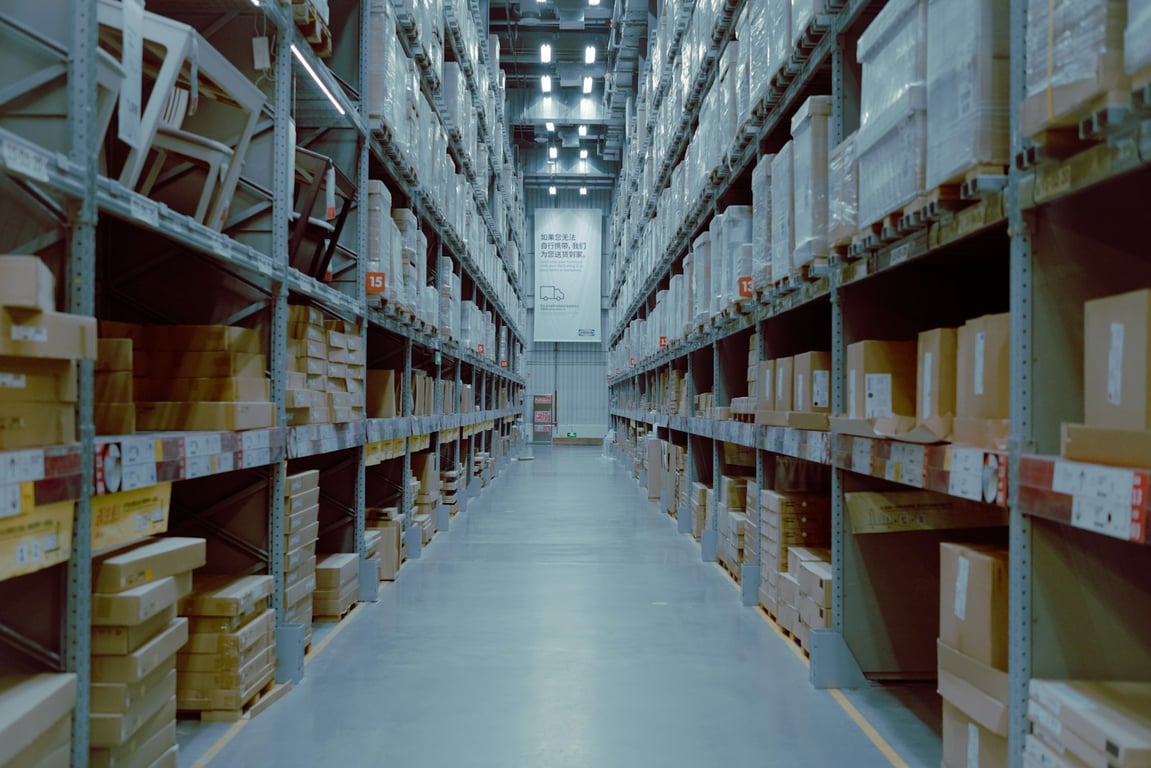
Warehouse pallets and cases: purchase order item entry depends on knowing which unit of measure the vendor price is for. Photo by Arum Visuals on Unsplash
Why PO item entry breaks when UOM + pricing aren’t modeled
Most inventory/PO tools end up with three separate ideas that get mixed together:
Base unit (inventory UOM): how you consume/track stock internally (e.g., each, piece, gram)
Purchasing unit (vendor UOM): how a supplier sells the item (e.g., box of 100, pallet)
Price: the cost attached to the vendor’s purchasing unit
When the PO line only shows “Qty” and hides the purchasing UOM, the buyer can’t answer basic questions like “is this 1 bag or 1 pallet?”, especially on mobile.
When the PO line pulls a vendor price via a lookup/formula and you can’t override it, every normal price change becomes a workflow problem.
Target data model (simple + debuggable)
Whether purchasing lives in Airtable, in an inventory system like Katana or NetSuite, or in a custom app, the model is the same: use one row per vendor × part combination.
Vendor pricing table (recommended fields)
Part (relation)
Vendor (relation)
Lead time (days)
Vendor UOM (select: box, pallet, case, etc.)
Vendor price (currency)
Conversion rate to base UOM (number)
Meaning: 1 vendor UOM = X base units
Example: 1 pallet = 10,800 sheets
Indivisible? (checkbox)
Example: you can’t buy 0.5 pallet
Computed field: price per base unit
Compute:
Price per base unit = Vendor price ÷ Conversion rate
Example:
Vendor UOM: pallet
Vendor price: $1,300
Conversion: 1 pallet = 10,800 sheets
Price per sheet: $1,300 ÷ 10,800 ≈ $0.12037037/sheet
Displayed to two decimal places: $0.12/sheet
Illustrative cost for 1,000 sheets: approximately $120.37, not $120.00
Keep sufficient precision in the stored calculation and round the final monetary total according to your policy. Display formatting should not truncate the value used in BOM calculations. Require a positive, nonzero conversion factor and confirm the price and quantity use the same purchasing unit.
The distinction between inventory and purchasing units is also illustrated in Odoo’s purchase-UOM documentation. The design here is platform-neutral; it does not assume your current tool implements the fields automatically.
Fix purchase order item entry: what to surface on each line
A PO line should let the buyer confirm three things at a glance:
1) What item is being purchased (part + part number)
2) What unit they are buying in (vendor UOM)
3) What price they are paying (and whether it’s the default)
Recommended PO line fields
Vendor pricing (relation)
Quantity (number)
Suggested vendor UOM and price (lookups, while drafting)
PO purchasing UOM (stored snapshot)
PO conversion factor (stored snapshot)
PO unit price (stored snapshot, editable before approval)
Optional override price (currency input)
Effective draft price (formula)
If the override is not null, use it; otherwise use the suggested default. An override of zero is a value, not an empty field.
Line total
Purchasing quantity × stored PO unit price, with tax, freight, and discounts handled explicitly
Define the commit point (such as PO approval or issue) when suggestions become immutable order values. After that, current vendor-pricing changes must not recalculate historical orders.
Handling price changes without breaking history
You usually want two truths:
The current vendor price (for future POs)
The actual price paid on this specific PO (for history)
A practical pattern:
While drafting, suggest values from the current vendor-pricing record.
On approval or issue, snapshot the purchasing UOM, conversion factor, currency, and agreed unit price onto the PO line.
Keep that snapshot unchanged when vendor pricing is updated.
Provide a separate, permission-controlled Update vendor pricing from this PO line action for future defaults. Record who changed the default and when.
Handle corrections to issued orders through an explicit revision process.
An optional override alone does not preserve history: any line still calculating from a live default would change when that default changes.
If vendor pricing varies by currency, pack size, quantity break, or effective date, include those dimensions in the pricing record instead of assuming one vendor-part pair always has one price.
BOM math: convert vendor pricing to the UOM your BOM consumes
BOMs often consume materials in a different UOM than purchasing.
Checklist for correct BOM rollups
Every BOM item points to a Part that has at least one Vendor Pricing row
Vendor pricing has a conversion rate for any non-base UOM purchases
BOM cost uses price per base unit, not the raw vendor price
Define whether BOM estimates use a selected supplier quote, current replacement cost, or a documented conservative estimate
Keep that estimation policy separate from the inventory valuation method approved by finance; “highest” or “most recent” is not a universal accounting rule
Retain precision beyond two decimal places for small per-base-unit costs
Include scrap, yield, freight, or other landed costs where your costing policy requires them
When whole packs are required, calculate purchasing quantity by rounding required base units up to the next whole purchasing unit
UX / naming clean-up (reduce confusion)
If your UI still uses older labels like “purchase terms” or a misleading field like “parts carried,” standardize:
Use Vendor pricing as the table/section name
Use Vendor UOM and Base UOM explicitly
Keep “Part number” and “Vendor part number” as separate fields so the buyer can confirm the correct item
Testing checklist (sandbox first)
Before rolling changes into live purchasing:
Sandbox test cases
Create a vendor pricing row with a non-base UOM (e.g., pallet) and conversion rate
Create a PO line and confirm the vendor UOM is visible on the line
Confirm the PO line defaults to the latest vendor price
Override the vendor price on the PO line and confirm line total updates
Run “update vendor pricing from PO line” and confirm next PO defaults to the new price
Confirm BOM cost uses price per base unit (vendor price ÷ conversion)
Confirm decimal formatting is correct and does not reduce calculation precision
Change the vendor default after issuing a test PO and confirm its historical price, UOM, conversion, and total stay unchanged
Test null and zero overrides separately
Reject zero or negative conversion factors and invalid purchasing quantities
Live data validation (read-only first)
Pick 3–5 real POs and verify the displayed vendor UOM matches what was actually ordered
Spot-check 5 parts with conversion rates (box/case/pallet) to confirm per-base-unit cost is reasonable
Confirm dashboards/rollups that depend on PO items are reading from live PO data (not manual test columns)
Get help fixing PO entry and BOM costing
Unit-of-measure pricing usually breaks at the handoff between the vendor price, the PO line, and the BOM rollup, when one record quietly uses a different unit than the next. If your purchasing workflow has hit that wall, book a ZoomFlow session and one of our consultants will work through your vendor-pricing model and PO line setup with you live.
Build an estate operations platform in Notion + Microsoft 365. Use phased workflows for SOPs, work orders, reporting, and (later) QuickBooks and Power Automate.
A small diagnostics company automated bill-of-materials inventory in Airtable, eliminating manual lot lookups and building a compliant audit trail. Here is how.
A Colorado cabinet door manufacturer producing 550–600 doors/day replaced paperwork-based tracking with an automated lot planning and conflict detection system.