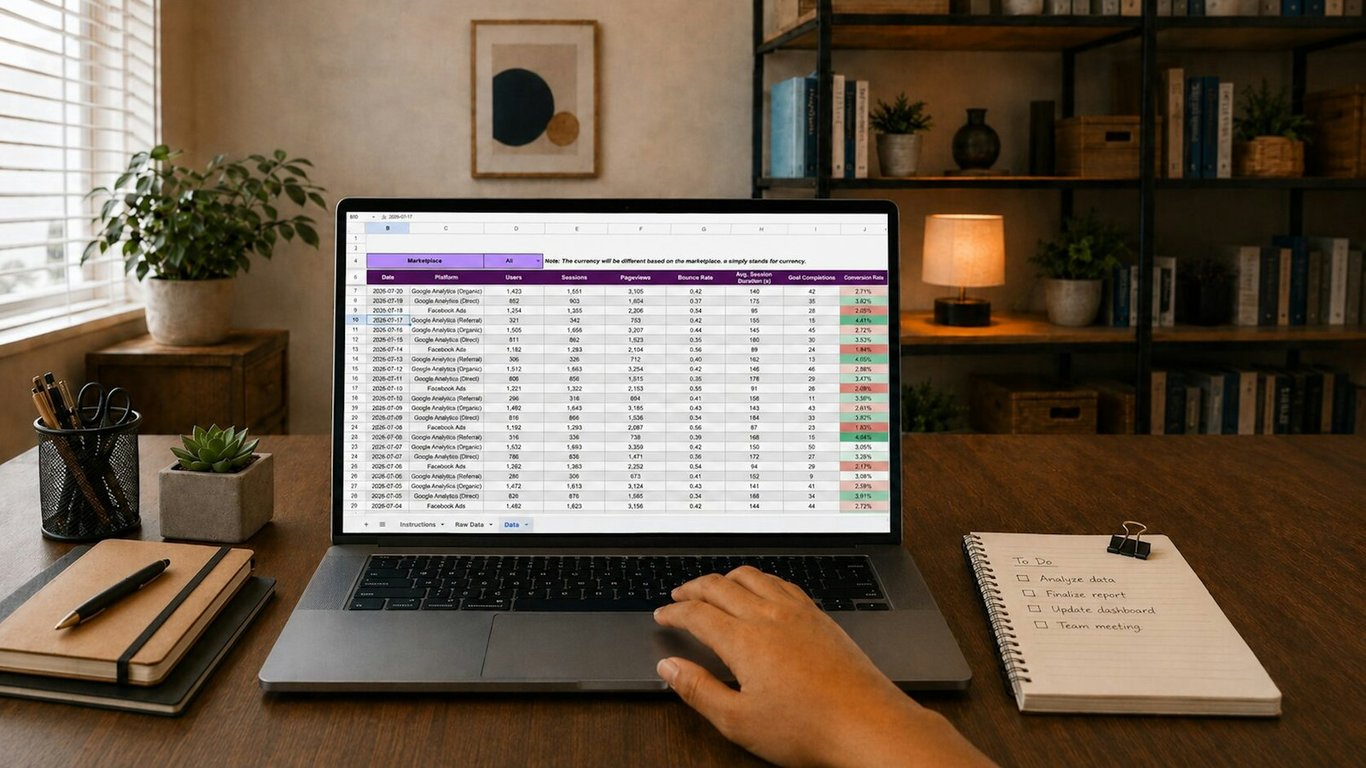
Zapier and Hunter.io lead enrichment automation turns 1 to 2 hours of morning company research into a single form submission. Instead of copying contacts into a spreadsheet by hand, a Zapier workflow pulls email addresses from Hunter.io and queues them for review before anything touches your CRM.
Zapier and Hunter.io lead enrichment automation: two Zaps, one loop each
Looping by Zapier does not support nested loops. A Zap cannot be turned on with more than one Looping step. (Per Zapier's help docs as of October 2026.)
Use this split:
Zap 1: accept a batch, normalize the inputs, and loop over companies. For each iteration, create one company job in a connected table.
Zap 2: trigger on one new company job, retrieve that company’s Hunter results, and loop over the returned contacts. There is no company loop inside Zap 2.
Use a connected table with a supported new-record trigger as the handoff. This is an asynchronous job queue, not a Sub-Zap that must return multiple loop results.
Zap 1: collect and queue companies
A structured form lets you require a company name or domain and keeps signatures and forwarded text out of the input.
Capture a submission ID and the company list.
Trim whitespace, remove blank entries, and normalize domains. Do not aggressively strip punctuation from company names.
Use one Looping step over the companies.
In each iteration, create a job with the submission ID, company name, domain if known, and a stable job key.
Record queued status and skip a job key that has already been processed.
A domain is preferable to an ambiguous company name. Have someone review unresolved names before enriching the wrong organization.
Zap 2: enrich one company and loop over its contacts
Step A: receive one company job
Trigger from the new company-job record. Read its company or domain fields directly; do not add another company Looping step.
Step B: call Hunter Domain Search
Use a supported Hunter action or an authenticated request to the documented endpoint. Hunter's API reference distinguishes three endpoints (as of October 2026):
Domain Search: returns email addresses found for a domain, with sources and available contact metadata. It accepts a domain or company name; supplying a domain is more precise.
Email Finder: resolves an individual’s email from identifying information such as a person’s name and company domain. It is not a replacement for a company-wide search.
Email Verifier: checks an address separately when additional verification is needed.
Handle pagination deliberately. Domain Search is paginated; a single response is not necessarily every available contact. For a small first release, set a supported result limit and record that the search is capped. For larger coverage, queue additional page jobs or retrieve pages in a tested code step before the contact loop. Keep only one Looping step per Zap and respect both providers’ limits.
Step C: loop over returned contacts
Map the aligned contact fields into one Looping step. Each iteration now represents one email address, not one company.
If the result list is empty, mark the company job as No results and stop that path. Do not create a blank contact row.
Step D: classify only when supported by evidence
Optional AI labels can help review, but a model’s confidence score is not a verified fact. Supply a controlled category list and allow Unknown. Preserve the source title and company information so a reviewer can check the label.
Do not invent missing job titles, phone numbers, industries, or personal details.
Step E: write review rows
Store:
Company and domain
Available contact name and title
Email and verification status, when supplied
Optional phone, only if actually returned
Classification, marked as inferred when AI-generated
Source URL or source record, retrieval timestamp, and job key
Review status and an Approved field
Deduplicate by a normalized email and your chosen tenant/account scope. Keep provenance and process only the contact data you need. Finding an address is not consent to receive marketing.
Optional: push approved rows into Salesforce
Once the spreadsheet is the source of truth, create a separate Zap:
Trigger: new or updated spreadsheet row where Approved = true
Do not map preview-only loop fields like preview_loop_values into downstream steps. Zapier's docs confirm that field is not available in live runs.
Expect volume-driven costs. Enrichment plus spreadsheet writes can consume multiple Zapier tasks per contact.
Handle “no results” gracefully. If Hunter returns no matches for a company, skip and continue.
Get help building your lead enrichment workflow
Most Zapier and Hunter.io builds break at the handoff between the two Zaps, or at pagination, when a capped search quietly drops contacts. If you want this built right the first time, book a ZoomFlow session. One of our consultants will map your inputs, required fields, and volume with you live, then build the working version on the call.
Send a weekly BambooHR time off balance report email with Zapier and Gmail. Format PTO balances as an HTML table so HR can scan them without logging in.
Outlook rules that move emails into subfolders make Zapier miss them. Trigger on the right folder, add a Zapier Email Parser backup, and backfill misses safely.
European trucking firm: 5,000 monthly leads, automated recruitment pipeline with Zapier — 130–160 hours of manual work eliminated. See how Connex built it.